Do I need to connect my broker account?
No. Upload your year-to-date CSV once, then add the day's CSV after each session — that's the whole routine, and your broker login never touches our servers. A read-only auto-sync (it would see your fills and nothing else, never place trades, and could be disconnected any time) is coming soon for the full journal.
Which brokers are supported?
Interactive Brokers (Flex Query), Charles Schwab, Robinhood, moomoo and Tradovate (futures) are read automatically, and Tastytrade or any other broker's CSV imports after you confirm the columns once. The app shows you exactly where each broker's export is. Tradovate's file has no commissions, so Tradovate P&L shows before fees. Missing your broker? Tell us: brokers get added in the order they're asked for. The Scalpers Journal is independent and not affiliated with any of these brokerages.
Does it work for options scalping?
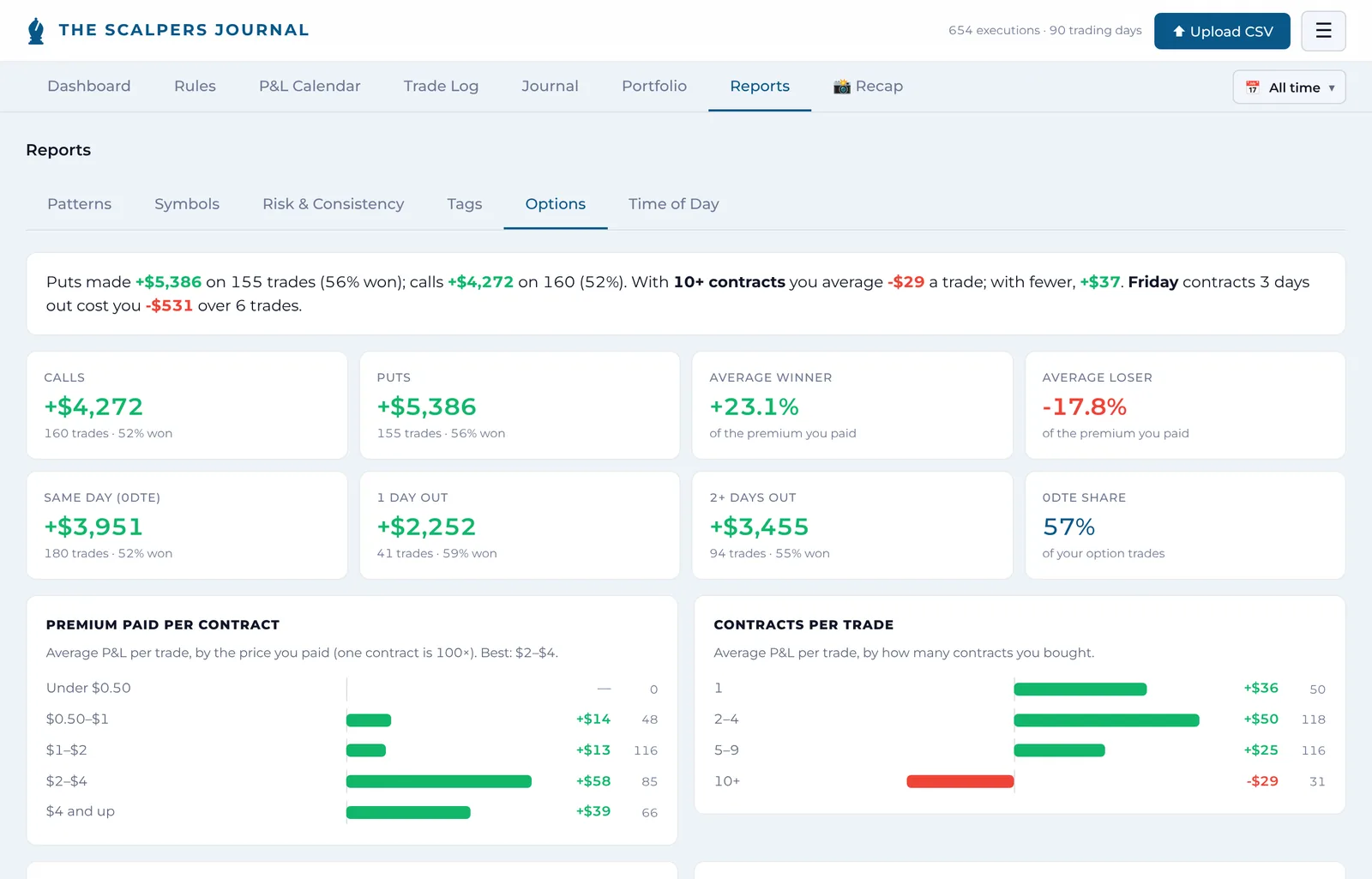
Yes — that's specifically what it's built for. Sub-5-minute holds, multiple round trips per day on the same contract, accounting that handles all of it correctly. Most journals were built for swing traders; this one wasn't. Reports → Options breaks your trades down the way an options trader thinks: calls vs puts, premium paid, contracts per trade, and P&L by days to expiry, 0DTE included.
Can I track shares and ETFs too?
Yes. There's a separate Portfolio tab for long-term shares and ETFs, with sector breakdown and allocation charts. The journal handles both intraday trading and longer-term positions.
What happens to my data if I cancel?
You can export everything as JSON at any time, even before subscribing. If you cancel, your data stays in your account in case you come back, and you can request a full export or deletion whenever you want.
What's free and what isn't?
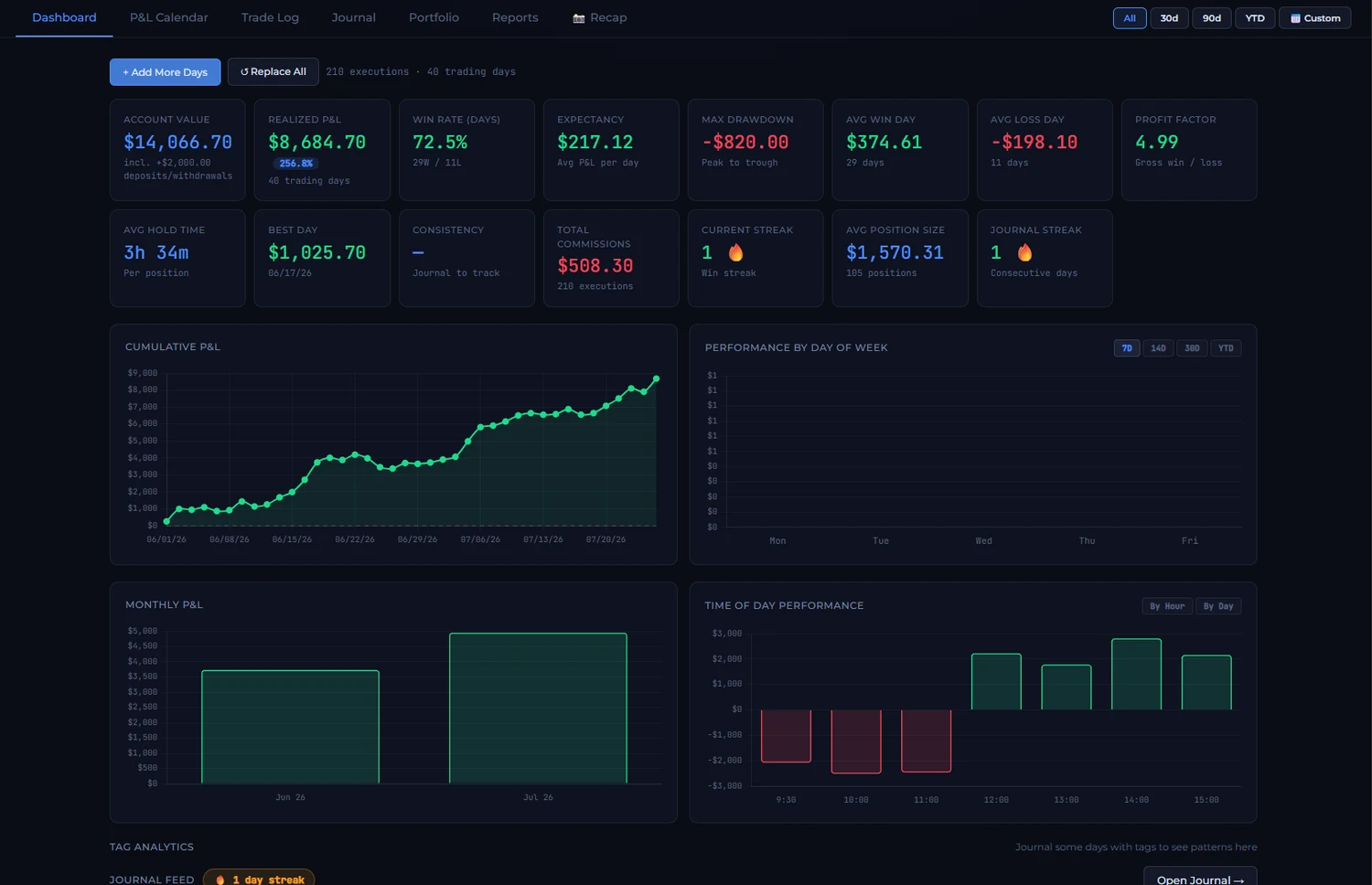
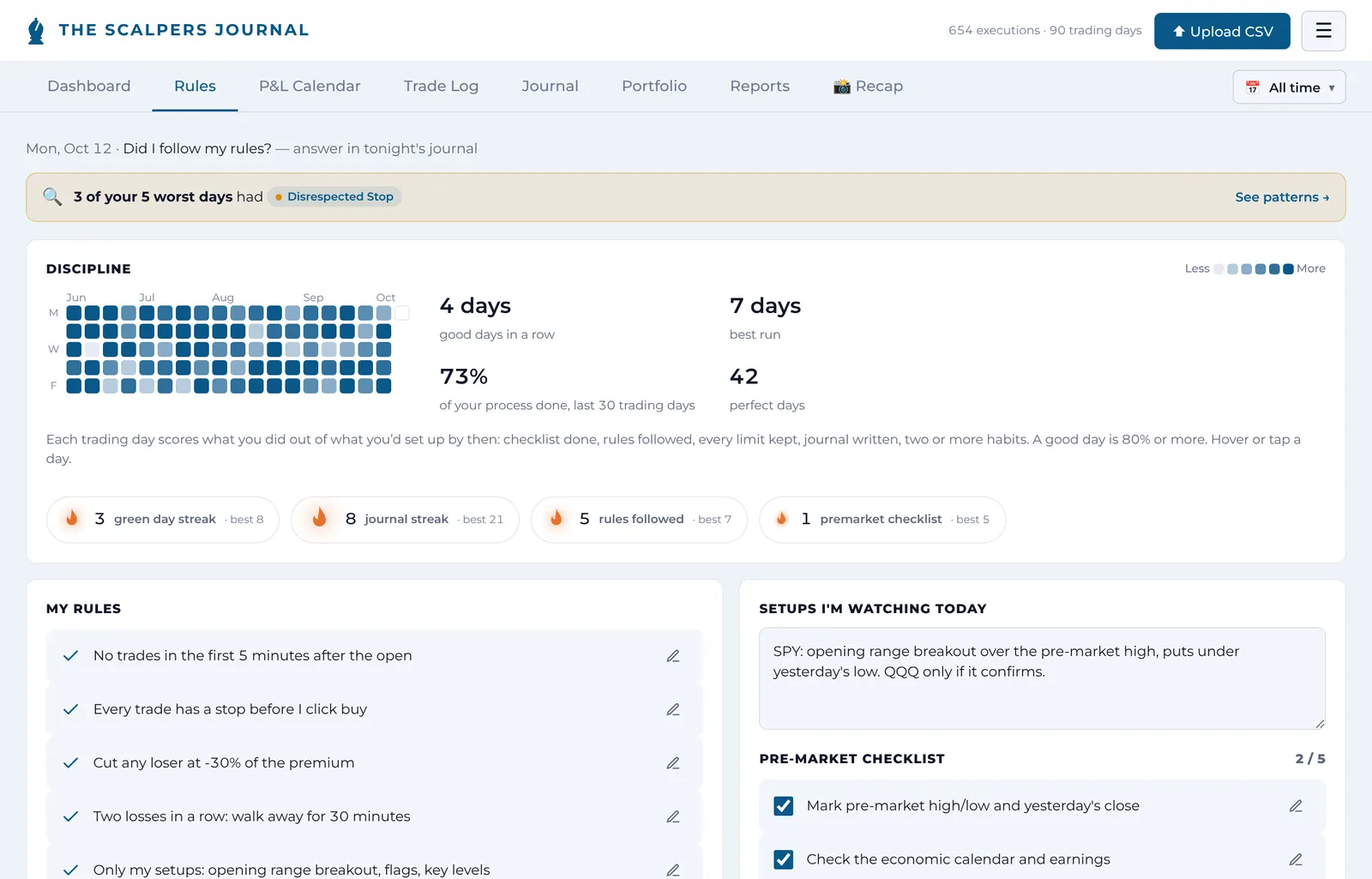
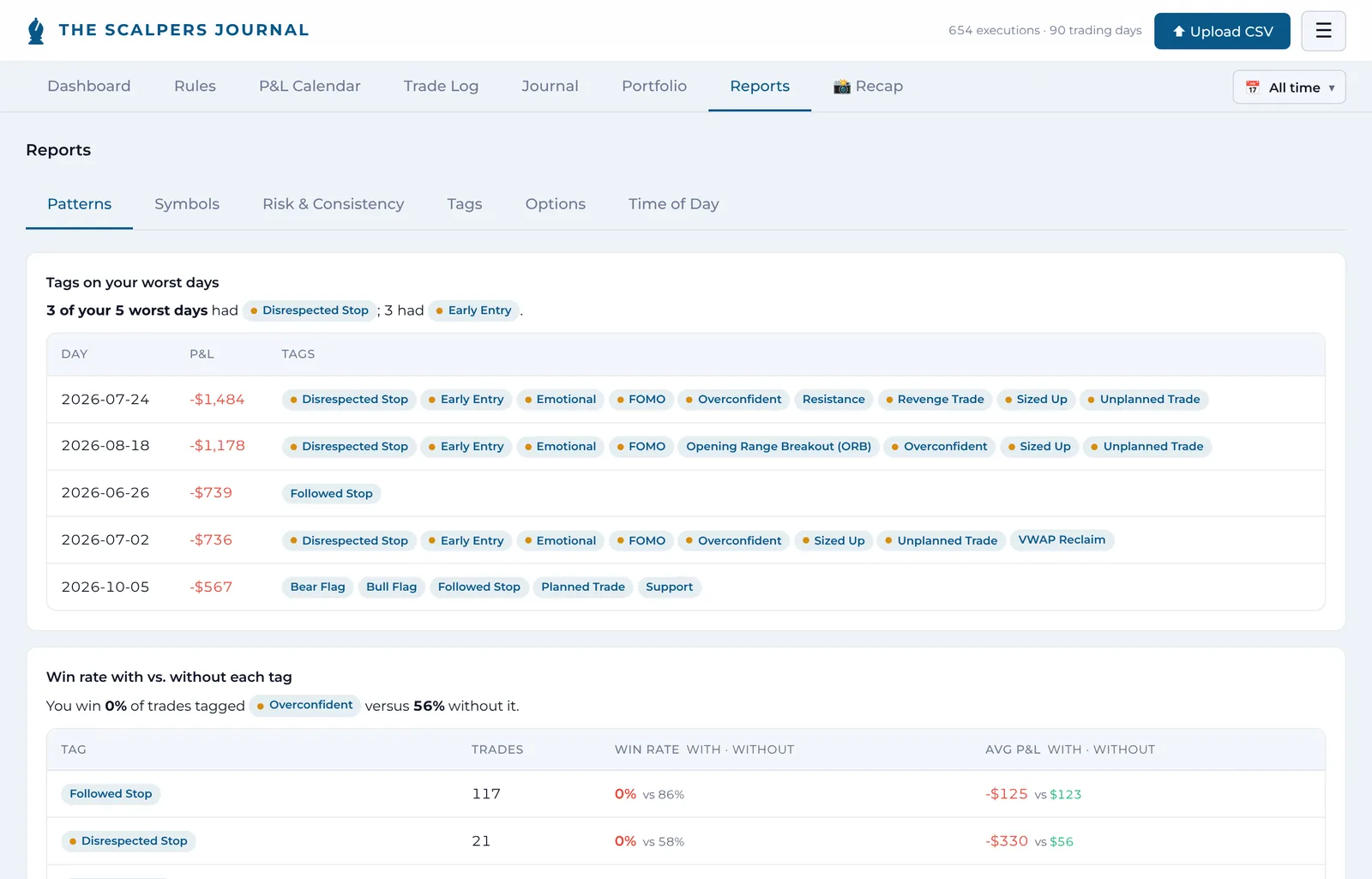
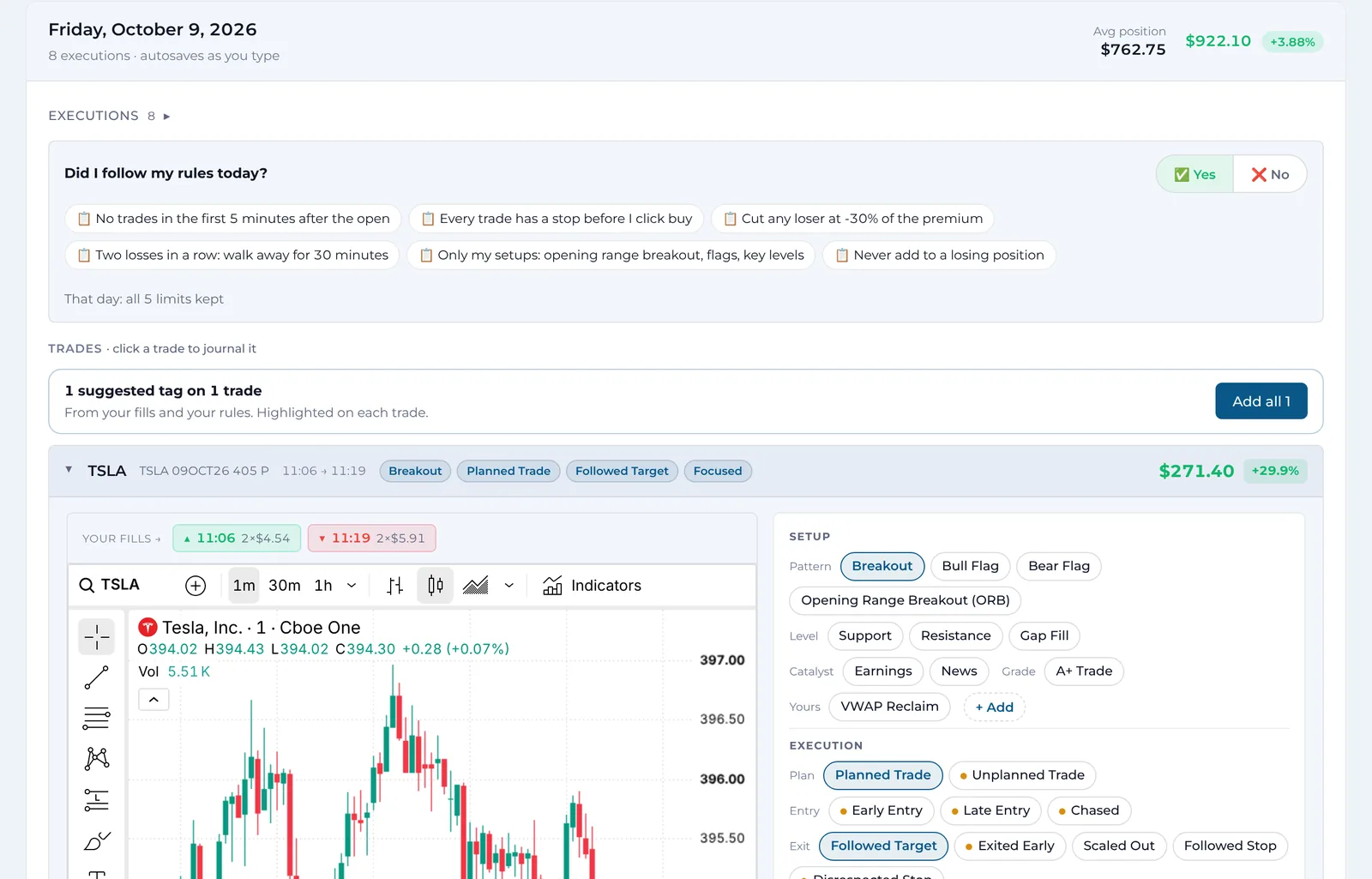
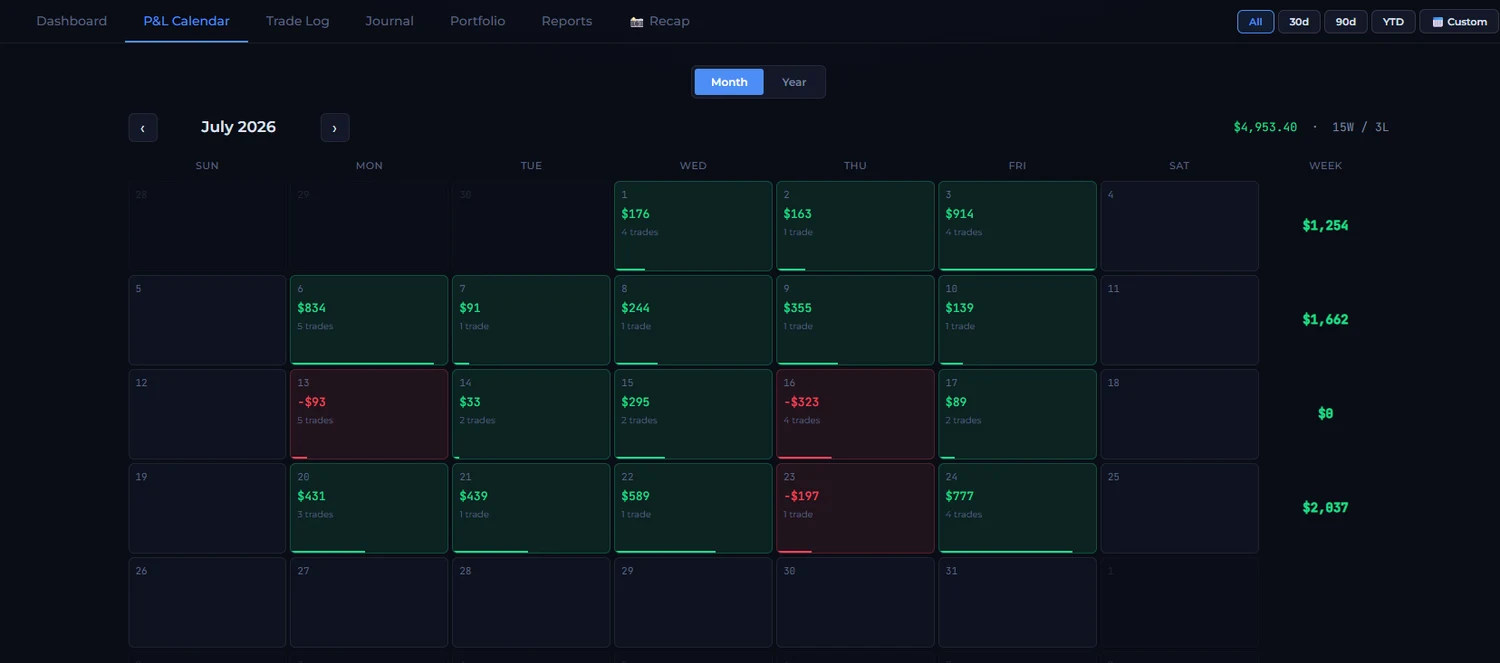
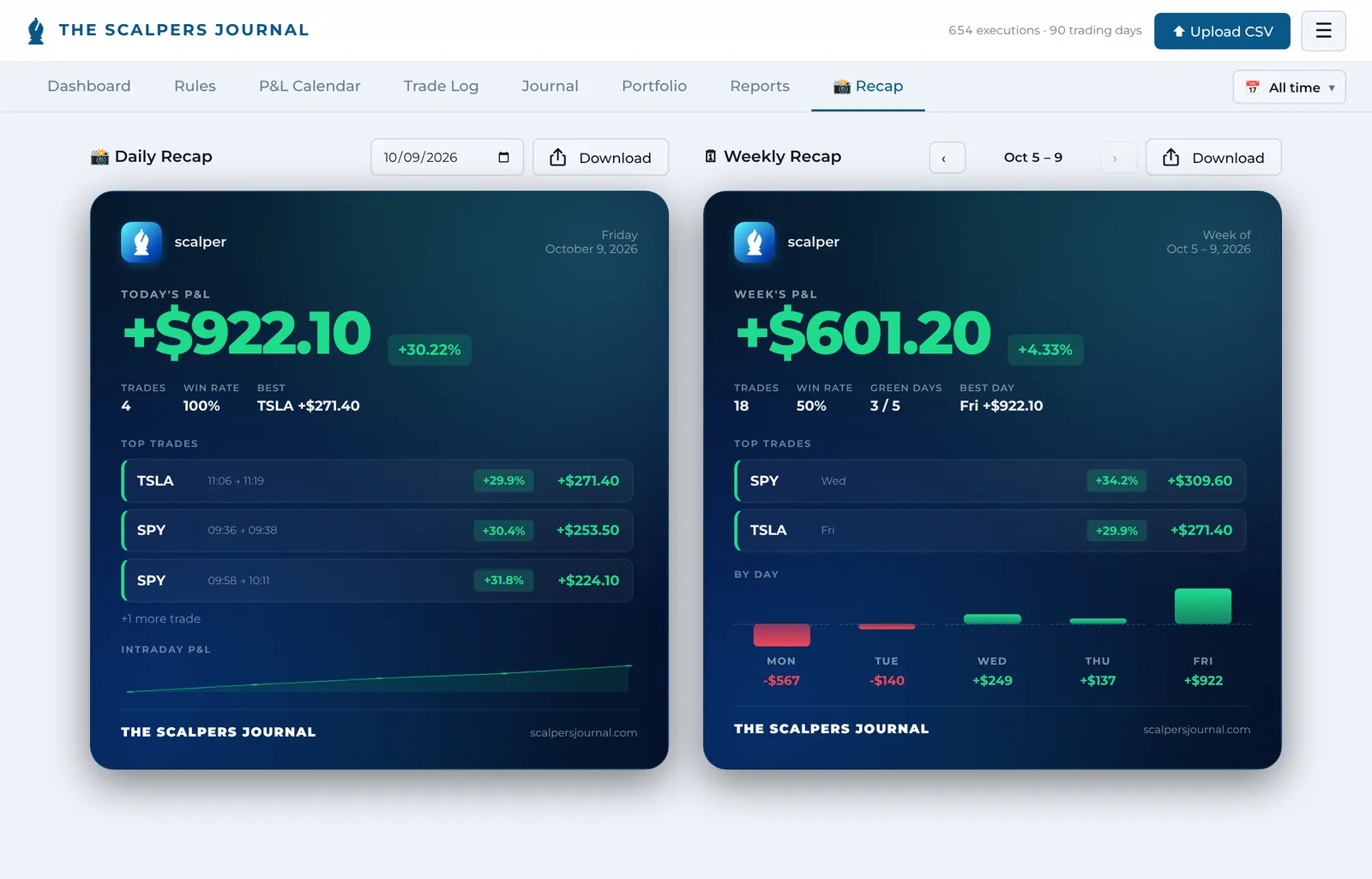
Free accounts get the P&L calendar, the trade log and the daily + weekly recap cards for your whole trade history, with no card on file and no time limit. The full journal adds the dashboard with your Scalper Score, the daily journal with notes and tags, rules, reports and portfolio. Everything you upload is stored either way, so nothing is lost if you upgrade later.
Why $30 a month for the full journal?
The Scalpers Journal is built for traders who take this seriously — people whose monthly P&L is measured in thousands, not lunch money. At that level, a journal that helps you stop one bad habit pays for itself in the first week. We'd rather charge a fair price and stay independent than chase volume with a $10 tier full of upsells.
Is there a free trial of the full journal?
The free plan is the trial — use it as long as you like. If you upgrade and it's not for you in your first week, email us and we'll refund you in full — no questions, no forms.